
Centre software · version 1.2.13
CGCPSaathi Biometric Sync
This Windows program sits on the centre PC and sends punches from an eSSL F22 to CGCP Saathi. It also writes queued staff and trainee names back to the machine, and can set a finger or a card from the person card.
Download for WindowsPublisher cgcpsaathi.in · 64-bit Windows · version 1.2.13 · about 45 MB · supported device eSSL F22
Install
- 1Use a Windows 10 or Windows 11 PC on the same network as the eSSL F22, with internet access.
- 2Download the installer and open it. If Windows says the publisher is unknown, choose More info, then Run anyway. The program is published by cgcpsaathi.in.
- 3Leave the server address as it is shown, unless CGCP Saathi has given this centre a different address.
- 4Finish setup. The first time the window opens, create an admin PIN of 4 to 8 digits. That PIN stays on this computer. It is not stored as plain text.
- 5The desktop shortcut is named CGCPSaathi Biometric Sync. The sync also runs in the background and starts again about 30 seconds after Windows restarts. Nobody has to stay logged in.
- 6The machine serial number must already be saved on that centre in CGCP Saathi.
The program is installed in C:\ProgramData\CGCP Saathi F22 Sync. The log is sync.log in that folder. A one-time sync is in the Start menu as Sync now.
Manual
The pictures are from a demonstration copy, so the title says sample. A centre install is titled CGCPSaathi Biometric Sync. The pages are the same.
Devices
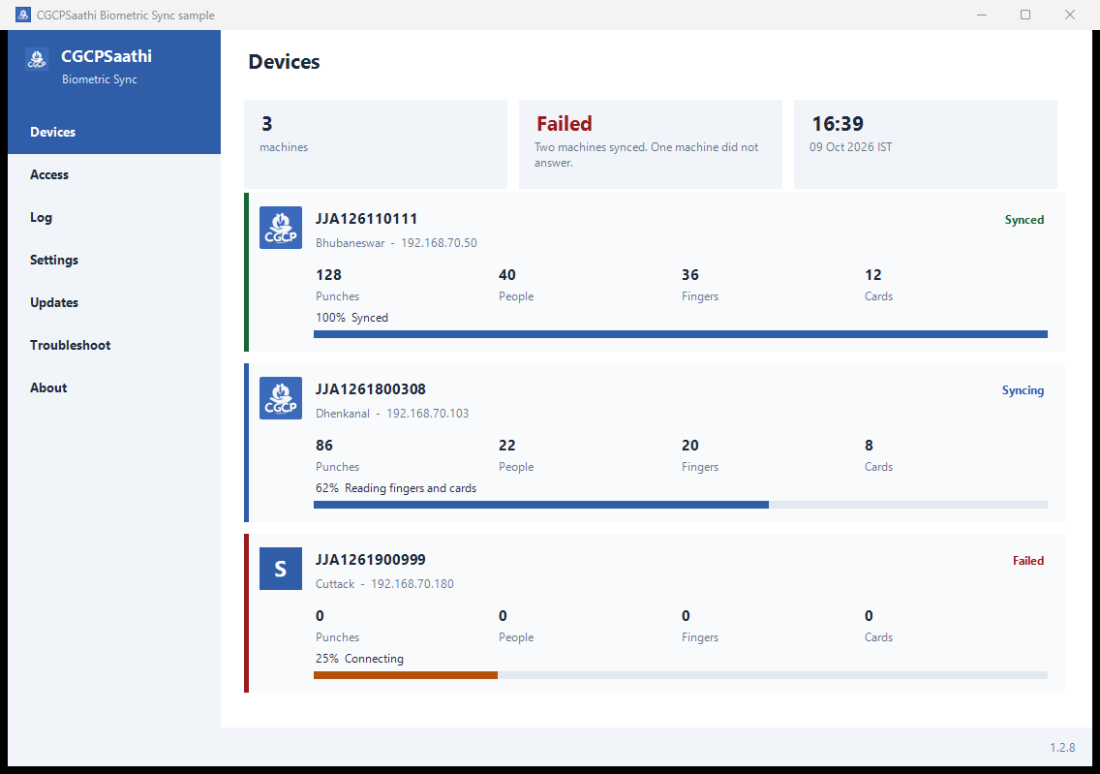
Each machine is a card with the organisation logo, the centre, the address, punches, people, fingers, cards, and a sync bar. Open a card to work on that machine.
One machine
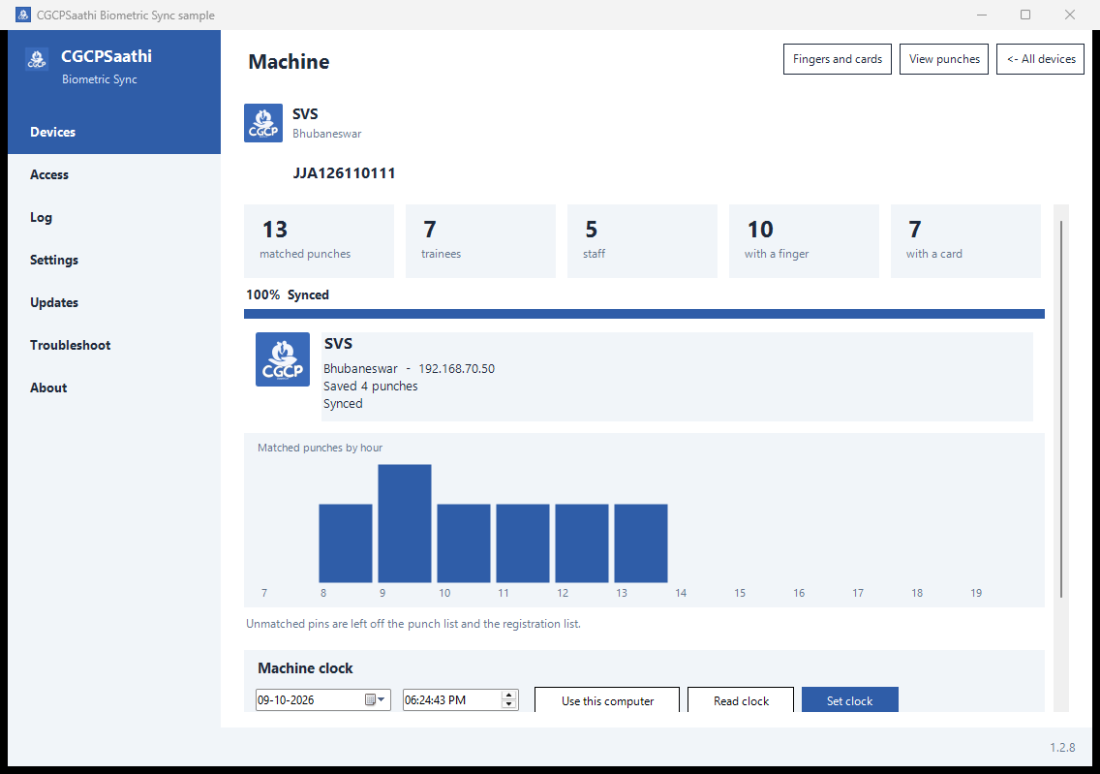
The machine page shows the organisation, the centre, the serial, the last sync, and punches by hour. Read the machine clock, or set it from this computer.
Fingers and cards
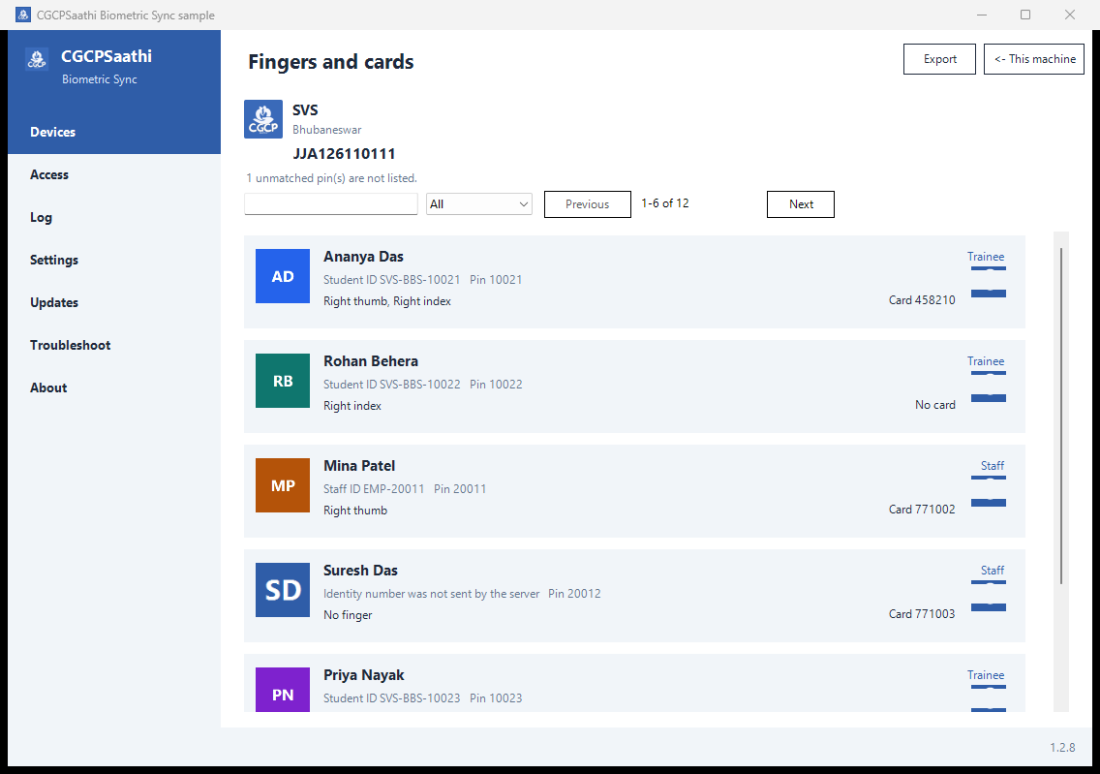
Trainees and staff are listed with the identity number the server sent, the pin, the fingers, and the card. The blue icon on a person opens fingerprint and card setup. People the server could not match are left off this list.
Fingerprint and card
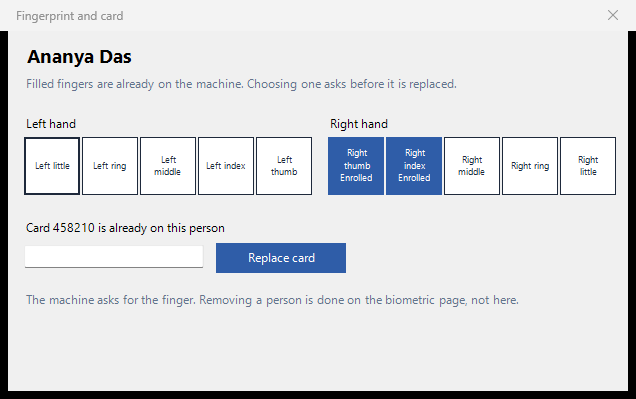
Fingers already on the machine are marked Enrolled. Choosing one asks before it is replaced. If a card is already stored, the button says Replace card and asks before it writes. Fingerprint images stay on the eSSL F22. This program does not copy them, and it does not delete a person. A delete is applied only when the biometric page on CGCP Saathi sends it.
Punches
Filter by name, trainee or staff, and a date range. Export uses the full filtered list, not only the page on screen.
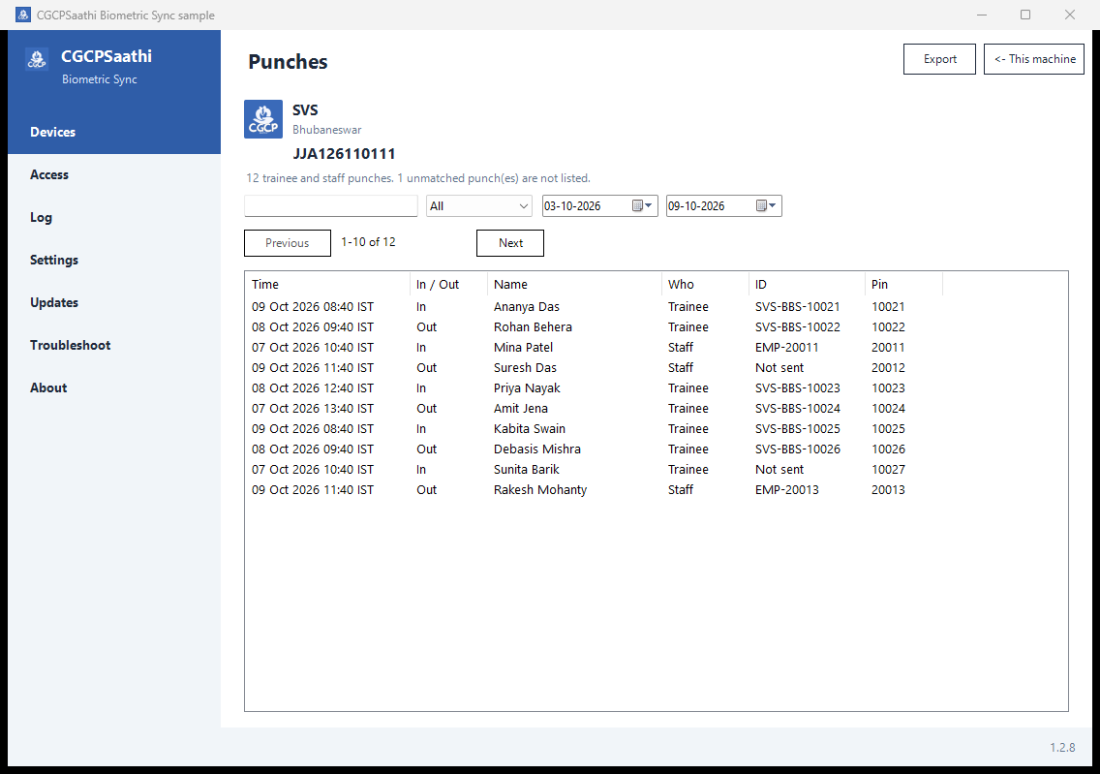
Access
After the admin PIN, choose the organisation and then a staff member. A punch on the machine is not required. Only the install admin, and a staff member whose role is Admin for that organisation, can open Access. Any other staff PIN can use the rest of the window and does not see Access.
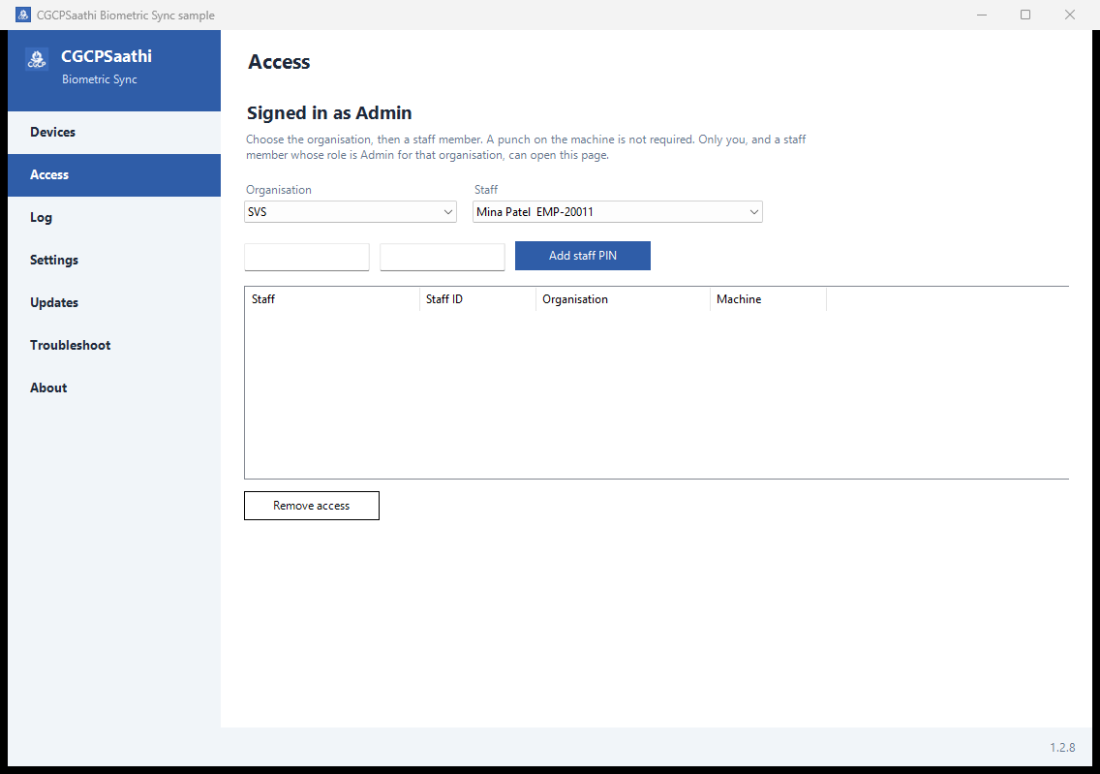
Settings
Punches are sent to the server chosen at install. Add a machine address when the search does not find it, one address per line. Leave the list empty to search the network. Saved addresses are tried first.
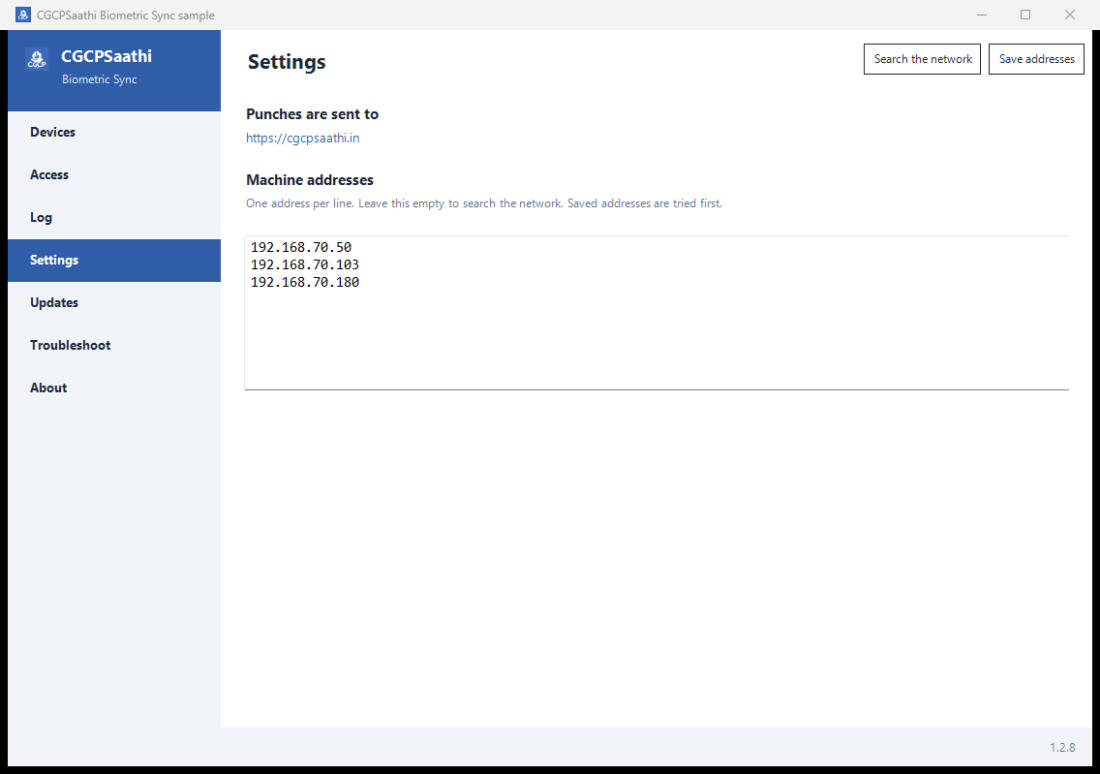
Updates
Version 1.2.0 and later check this site and replace themselves when a newer installer is published. Keep the window open if you want to watch that. A centre still on 1.1.0 must be updated once by running the installer.
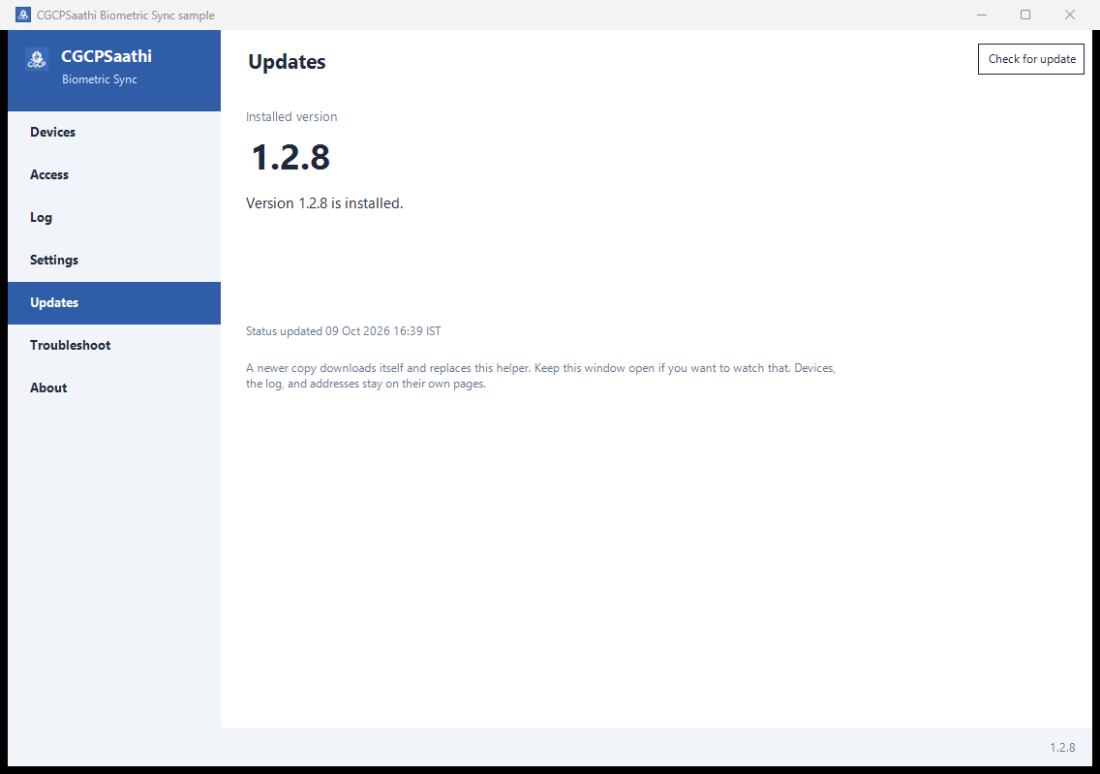
Forgotten PIN
Choose Forgot PIN in the sign-in window. CGCP Saathi emails an 8-digit code that is valid for 15 minutes and can be used once. The admin code goes to the CGCP Saathi administrator. A staff code goes to that staff member’s email on the centre. The new PIN is saved only on this computer.
Log and troubleshoot
Log shows the latest lines and can open them in Notepad. Troubleshoot runs checks on this computer, the saved addresses, and the latest sync. A report is saved when a machine fails. Support is support@cgcpsaathi.in and +91 8884866303, Monday to Saturday, 9:00 AM to 7:00 PM. WhatsApp uses the same number.
Updates
Version 1.2.13 checks the website on every sync, uploads punches that are missing there, and puts back people who should be on the machine but are not. Version 1.2.12 reads the punch log on every sync. An upgrade keeps the saved machine addresses. Centres already on 1.2.0 or later receive it from the Updates page. The install folder stays the same.